
TV and Projector Connector makes televisions, projectors and media players an output of the automation system, creates every control of the device itself from a single starting address; reads back the power state, what is playing and the lamp hours, and keeps control inside the building — a screen connection application.

The screen stays outside the system
The automation server runs the lighting, the climate, the blinds and the scenes from one place. The television is left out of that whole in most installations. A scene runs, the light dims, the blind comes down; then the user reaches for the remote. The system does not even know whether the television is on, it guesses. Nobody knows how many hours the projector lamp has run either.
The application creates the addresses itself
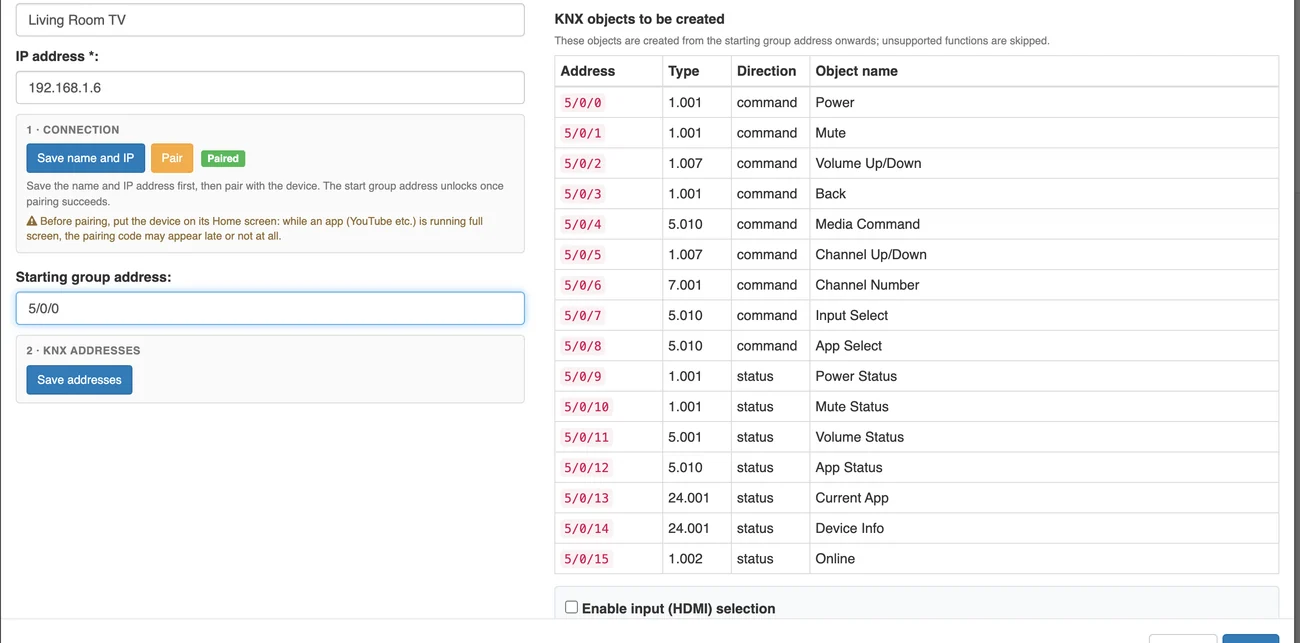
The application does the real work. You pick the device from the list, type its name and IP address, and give it a starting address. From that address the application opens every control onto consecutive addresses and names them in the language you chose. Twenty controls for a television, thirty-five for an Apple TV, ready to use. There is no need to open addresses one by one or type names.
The state comes back
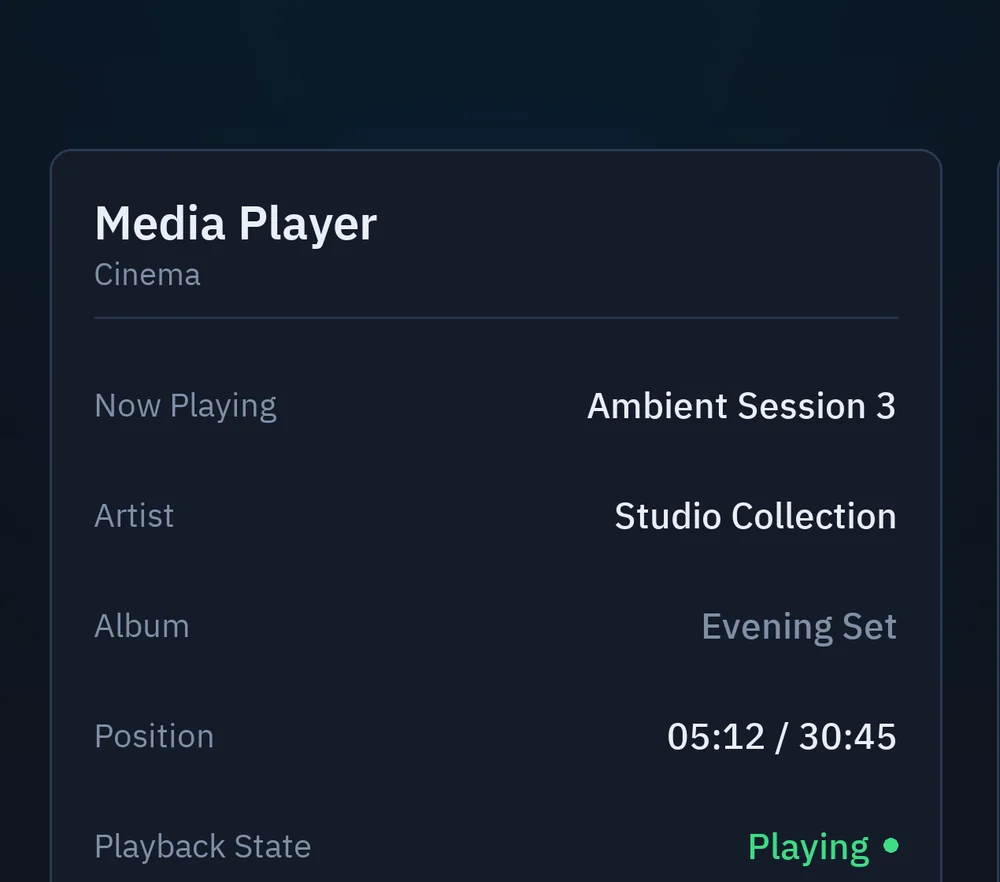
When the television is switched on, the system knows it — it does not guess. Power, volume, source and online state come back from every device. On Apple TV there is more: the title, artist and duration of what is playing appear on the graphics screen. Because the values come back, they are used as scene conditions. On an infrared bridge none of this happens; there the command goes out and no answer comes.
Connected systems
The application uses each system's own network interface. Every path below is a separate way of connecting; you pick the one your device falls under from a list during setup.

Television
LG webOS
This is the LG televisions' own network interface. The first time the application connects, a confirmation box appears on the television screen; you accept it with the remote and are never asked again. For remote power-on the MAC address is entered, because on webOS the power-on command travels as a Wake-on-LAN packet rather than over the network session.
Sony BRAVIA
This is the Sony televisions' IP control interface. A pre-shared key is defined in the television's menu and the same key is entered into the application. Identity is established with that key; there is no step of waiting for a code on the screen.
Philips JointSpace
This is the Philips televisions' network interface. There are two versions and you choose which one during setup. The newer version connects encrypted and shows a four-digit PIN on the screen. The older version asks for no credentials.
Google TV / Android TV
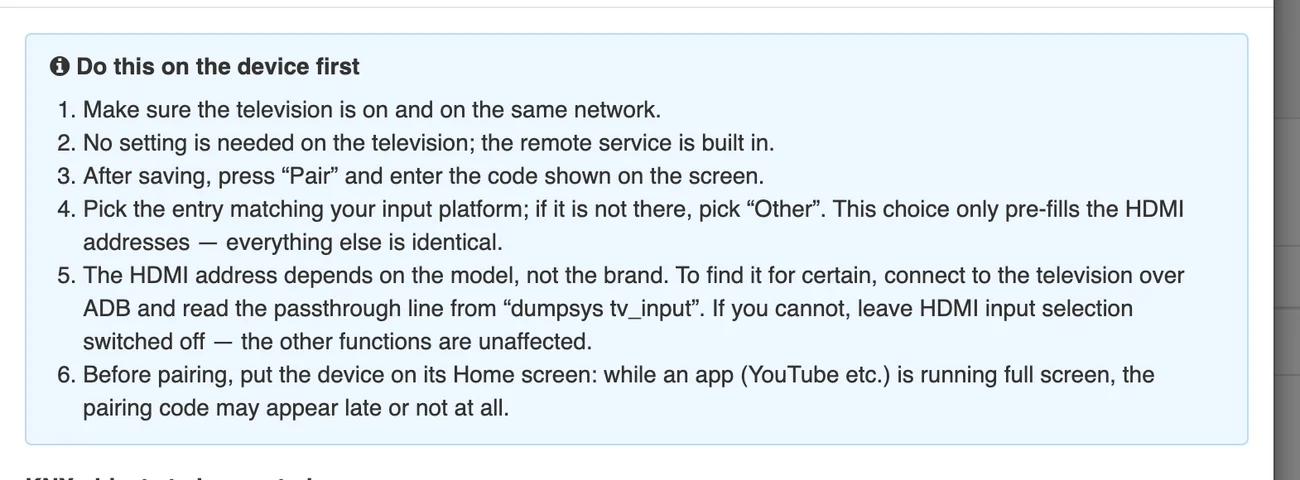
This is the platform's own remote control service; nothing has to be set on the television, the service is built in. After you save, a six-character code appears on the screen and is entered once. The same path works on every model running this platform, including TCL, Hisense, Philips and XGIMI.
Media player
Apple TV
This is Apple's own pairing path, and it pairs twice: once for commands, once for state. At each step a new four-digit code appears on the screen. The device has to be on and attached to a screen, because the code appears on that screen.
Projector
PJLink
This is the official projector control standard published by JBMIA and it works independently of brand. Network control is enabled from the projector's menu. If a password is defined on the device it is entered into the application; if not, the field is left blank.
- Epson
- Panasonic
- NEC
- Sony
- Canon
- Sharp
- Optoma
- BenQ
- Christie
- Barco
- Hitachi Maxell
- Ricoh
- Casio
- Mitsubishi
- InFocus
- ViewSonic
- Eiki
- FUJIFILM
Epson Web API
This is the Epson projectors' own web interface. It is enabled from the projector's network settings menu and asks for no other preparation. The same Epson device can also connect over PJLink; which path is used is your choice.
Sony SDCP
This is the Sony projectors' own control protocol. There is no password in this protocol and no credentials are entered. It is the path that asks for the least: the device's name and address are enough.
The projector lamp reports itself
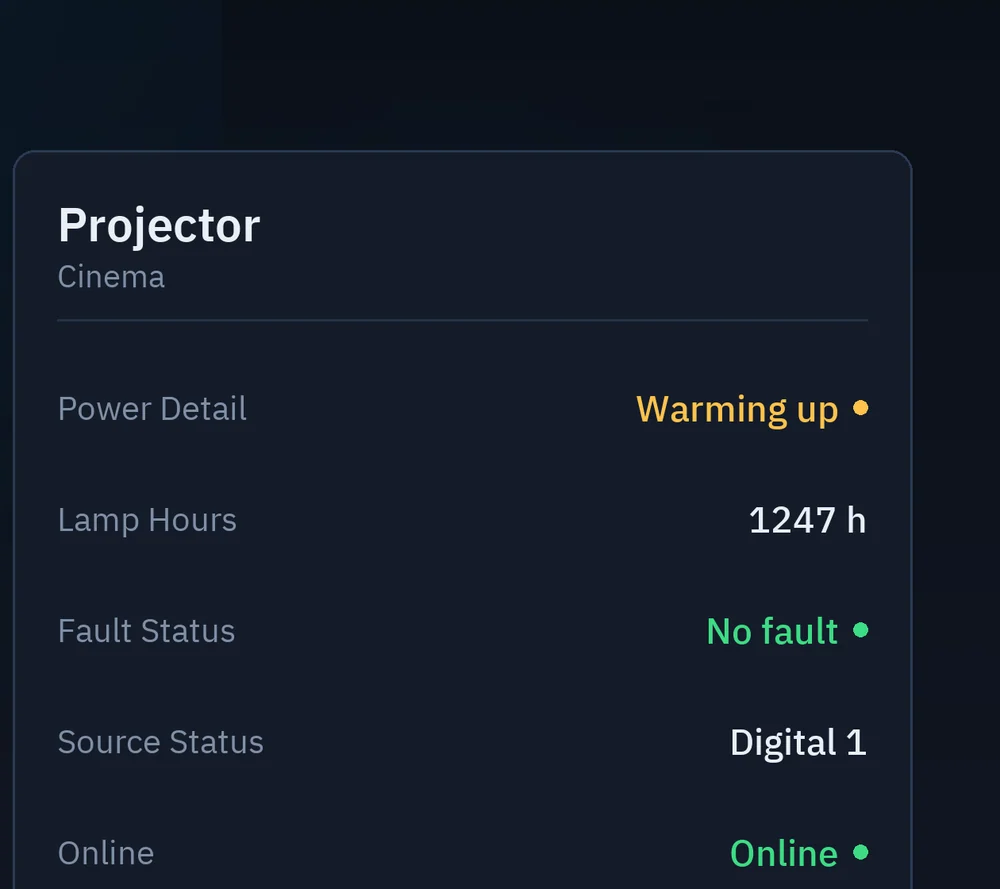
Projectors report their lamp hours and their fault state. Maintenance is planned from what the device itself reports, not from a calendar. In a site with many projectors the manager sees lamp life on one screen instead of walking room to room. The fault report arrives the same way and joins the building's alarm flow.
The preparation steps are written inside the application
Every system has its own preparation steps. On one, network control is switched on from the menu. On another, a pre-shared key is defined. On a third, nothing has to be set on the device at all. These steps appear inside the application, in the language you chose, the moment you pick the device. There is no separate manual to look for.
Control does not leave the building
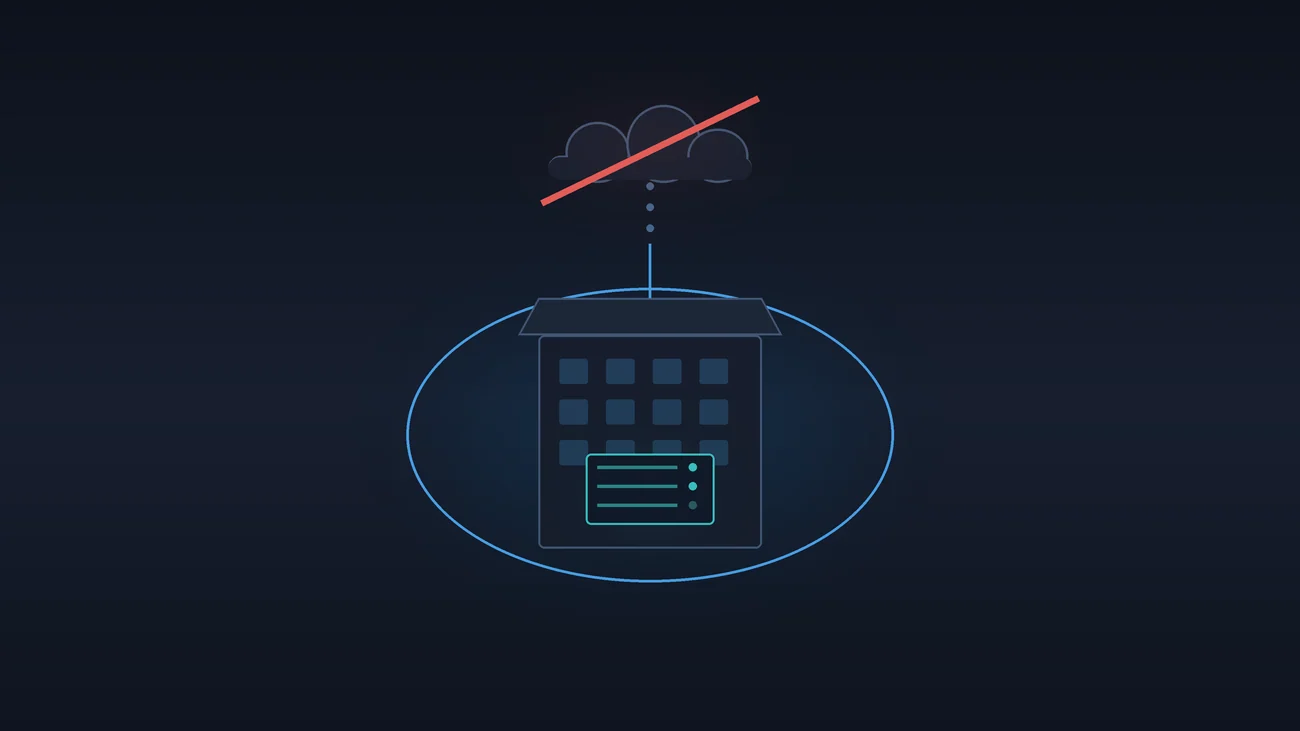
The application talks to the devices directly over the local network. There is no cloud account, no subscription, no connection to a manufacturer's server. Even if the internet goes down the television carries on being part of the scene. In hotel and corporate projects this is a compliance question; device data does not leave the building. At most twenty devices are added to one server.
- local network
- no cloud account
- no subscription
- IP only
Together with Sona Home
The application runs on the automation server and asks for no separate box. To bring the screen into the system you do not buy a new control processor, a new remote or a second application. If Sona Home already runs the lighting, the climate and the blinds, the screen joins that list. Where a wall touch panel is wanted, SonaHMI panels connect to the same platform.

How TV and Projector Connector works: product video
Adding a television to the system, pairing it with the code shown on the screen, and the control addresses being created from a single starting address.
Frequently asked questions
How is it different from an infrared remote?
With infrared the command only goes out. Here the device's state comes back to the automation: whether the television is on, the volume level, the open application and what is playing. A scene can read these values.
Which automation server does it run on?
It runs on an automation server licensed in the Home category. Sona Home and Sona BMS fall in that scope; the licence is issued to the device, not to the application.
Do I have to define the addresses by hand?
You do not. You give a single starting address; the application creates every object it needs on consecutive addresses and names them in the language you choose.
What if my device is not on the list?
You choose the device type and the connection path; the list is not a list of models but a list of connection paths. Models running Google TV and Android TV use the same path, and PJLink-compatible projectors speak the same standard.
Is a cloud account or a subscription needed?
Neither is needed. Control runs on the local network, and when the internet goes down the scenes carry on running.
How many devices can be added to one server?
At most twenty devices are added to one automation server.
Did the device manufacturers develop this application?
No. TV and Projector Connector is an independent application developed by Sona, and it uses the devices' own network interfaces. The product and brand names mentioned belong to their owners.
TV and Projector Connector is included in the Home licence and is installed from the store in Sona Application Center.
Become a Sona dealer.
Build your projects on a single platform. Training, technical support and the application catalog are open to our dealers.