
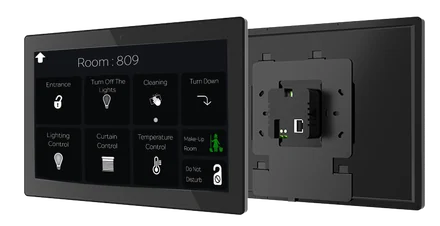
SonaHMI SNTP08 shows the screen you design on the automation server full-screen on the wall, brings systems on the BACnet, KNX and Modbus side onto the same page, and does it on an 8-inch display: a touch automation panel.

Where the SNTP08 sits
The SNTP08 is a small panel and it goes in two kinds of place. At meeting rooms it sits outside the door, in the corridor. In hotel rooms, hospital rooms and apartments it sits inside the room. Its small size and lower cost make the job scale in projects that need a lot of rooms. It is also mounted in the door of an electrical panel or in a plant room.

Why this panel
In the KNX world, touch panels come with ready-made templates. You cannot put a floor plan on them and you cannot design a screen for a particular customer. On the building management side there is almost no touch panel at all. SonaHMI solves both. On one panel, a BACnet air handling unit, KNX lighting and a Modbus power analyzer appear on the same screen.

You design the screen
The screen does not come from a template. You design the floor plan on the server and give that page to the panel. When you change the page on the server, the panel changes with it; you do not have to touch the panel. Each panel can show a different page.

Non-automation requests on the same panel
The panel does not only show automation. In a residence it becomes a concierge screen, where taxi, valet and store requests are raised from the panel. In a hotel the panel shows the requested service and how long it will take. An information screen comes out of the same panel too.

Installation and power
The panel is powered over PoE or from 220 volts. It joins the network over Ethernet or Wi-Fi. In a renovation there is no new data cable to pull. Mounting is flush, surface or in a panel door. The wall box and the metal mounting bracket come in the box. For panel door mounting, a 5 × 6 centimeter cut-out is made in the door, horizontal.

First start-up
When the panel is first switched on, a setup wizard appears and it works in many languages. Network type, address, server details, screensaver and PIN are entered step by step. If setup is interrupted, the panel picks up where it left off. After a factory reset it returns to the same wizard.
Kiosk mode
The panel runs in single-application mode. The user sees only the automation interface and cannot reach the settings or any other application. The status bar and the navigation bar are hidden. The screen is kept from sleeping, and the panel stays on around the clock. If there is a network or login problem, the panel says so in large, readable type.

Triggered from the automation
Some of the panel's functions are tied to a data point and take part in scenes.
- Alarm sound
- Notification sound one
- Notification sound two
- Doorbell
- Refresh the interface
- Turn the screen on and off
- Screen state
- Lock the panel
- Communication status
For example: a sleep scene in a hotel room takes the panel's screen completely dark.

Managing the panels
Every panel on the site is managed from one list with SonaHMI Manager. The application is free and installs from the server's store. Panel inventory, network settings, screensavers and software updates all run from here. Commands go straight to the panels, so the server is not loaded by them.
- List of models and software versions
- Finding panels again when their address changes
- Remote network and Wi-Fi configuration
- Updating the server connection details
- Screensaver library and upload
- PIN management
- Remote lock
- Remote screen on and off
- Restart
- Refresh the interface
- Triggering an audible alert
- Language management
- Remote software updates

Security
The panel and the server talk on the local network. The local settings menu is protected with a PIN; the user cannot get into the settings or into another application. The panel can be locked remotely, and while it is locked the screen goes dark and does not respond to touch. Software updates are run from the center, so nobody walks to each panel.

How many panels
Up to twenty panels connect to one automation server. Each panel can show a different page. By defining separate users, each panel is given its own set of graphics. Rooms, floors or buildings are separated this way.

Where it is used
Hotel room
A control screen inside the room.
Meeting room
The panel outside the door shows occupancy; the panel inside controls lighting and climate.
Hospital room
Room comfort and notifications from the center.
Apartment and villa
Bedroom, corridor and entrance panel.
Office
Control by area.
Store
Staff area panel.
Plant room
An operations screen on the panel.

SonaHMI SNTP08 specifications
The values below are taken directly from the datasheet; panel door mounting and the cut-out size are completed from what the installation video shows.
| Size / type | 8″ IPS touch |
|---|---|
| Resolution | 1280 × 800 |
| Brightness | 350 cd/m² |
| Color | 16.7M |
| Viewing angle | 85° / 85° / 85° / 85° |
| Touch | Capacitive multi-touch |
| Active area | 120.96 × 68.04 mm |
| Ethernet | RJ45 10/100/1000M (PoE supported) |
|---|---|
| Wireless | Wi-Fi 802.11 a/b/g/n |
| Bluetooth | 4.0 |
| Serial | RS485 |
| USB | Type-C |
| External supply | 220 V AC |
|---|---|
| PoE | IEEE 802.3af / 802.3at |
| Consumption | max. ~20 W |
| Audio | Built-in speaker + microphone |
|---|
| Mounting | Flush (in-wall) / surface / panel door |
|---|---|
| Back box compatibility | 86-type / US / EU back box |
| Panel door cut-out | 5 × 6 cm, horizontal |
| Dimensions (W × H × D) | 200 × 124.59 × 37.7 mm (11.6 mm surface protrusion) |
| Net weight | 0.4 kg |
| Material | Plastic enclosure + glass touch surface |
| Operating temperature | 0 – 50 °C |
|---|---|
| Operating humidity | 0% – 90% (non-condensing) |
| Storage temperature | 0 – 60 °C |
When SNTP10 instead
Where a wider screen is needed, SNTP10 is used. Large pages such as floor plans read more comfortably at 10.1 inches. Both connect to the same server and show the same interface.
Datasheet
- SonaHMI SNTP08Download the datasheet PDF
Managing panels with SonaHMI Manager
Managing the touch panels across a site from one place: inventory, network settings, screensavers, remote lock and software updates.
Frequently asked questions
Does the panel work on its own?
No. The panel connects to the automation server on the local network and shows the pages from that server. Without the server there is nothing to show.
Can I design a custom screen such as a floor plan?
Yes. The page is designed freely on the server, and the panel shows it.
Does a renovation need new cable pulled?
No. The panel works over Wi-Fi and is powered from a nearby point.
Is internet required?
No. The panel and the server work on the local network. The server needs an internet connection for remote software updates.
Can panels be updated without going to site?
Yes. The software on every panel is installed remotely through SonaHMI Manager.
Which languages does the interface come in?
The interface works in many languages, and the language is switched while it is running.
Become a Sona dealer.
Build your projects on a single platform. Training, technical support and the application catalog are open to our dealers.